Use the browser console
Audience: a server user with control.console or an effective permission that includes console access.
Availability: the operator must configure a console broker and the server must support the requested console type.
Before you open a console
Section titled “Before you open a console”The browser console connects to the virtual machine through its host. It is not SSH and does not require guest SSH networking. It still depends on a reachable host, the console service, and a valid Panel session. A console login uses the guest operating system account, not your Cloud Panel password. A key-only Linux image may have no password login. Do not enable root password access merely to obtain a console prompt.
Open a session
Section titled “Open a session”- Open Cloud Panel.
- Open Servers and select the intended server.
- Open Console.
- Choose graphical VNC or Serial if the options are offered.
- Allow the console window only for the trusted Panel site if your browser blocks it.
- Wait for the connection state before entering guest input.
- Authenticate to the guest if its login prompt appears.
The Panel supplies a short-lived launch credential to the configured console service. The launcher removes the credential from its address before session setup. Never copy or share a launch URL. An established session can continue after launch validity expires. A new connection after expiry requires a fresh Panel launch. Do not bookmark the console launch address; bookmark the server page instead.
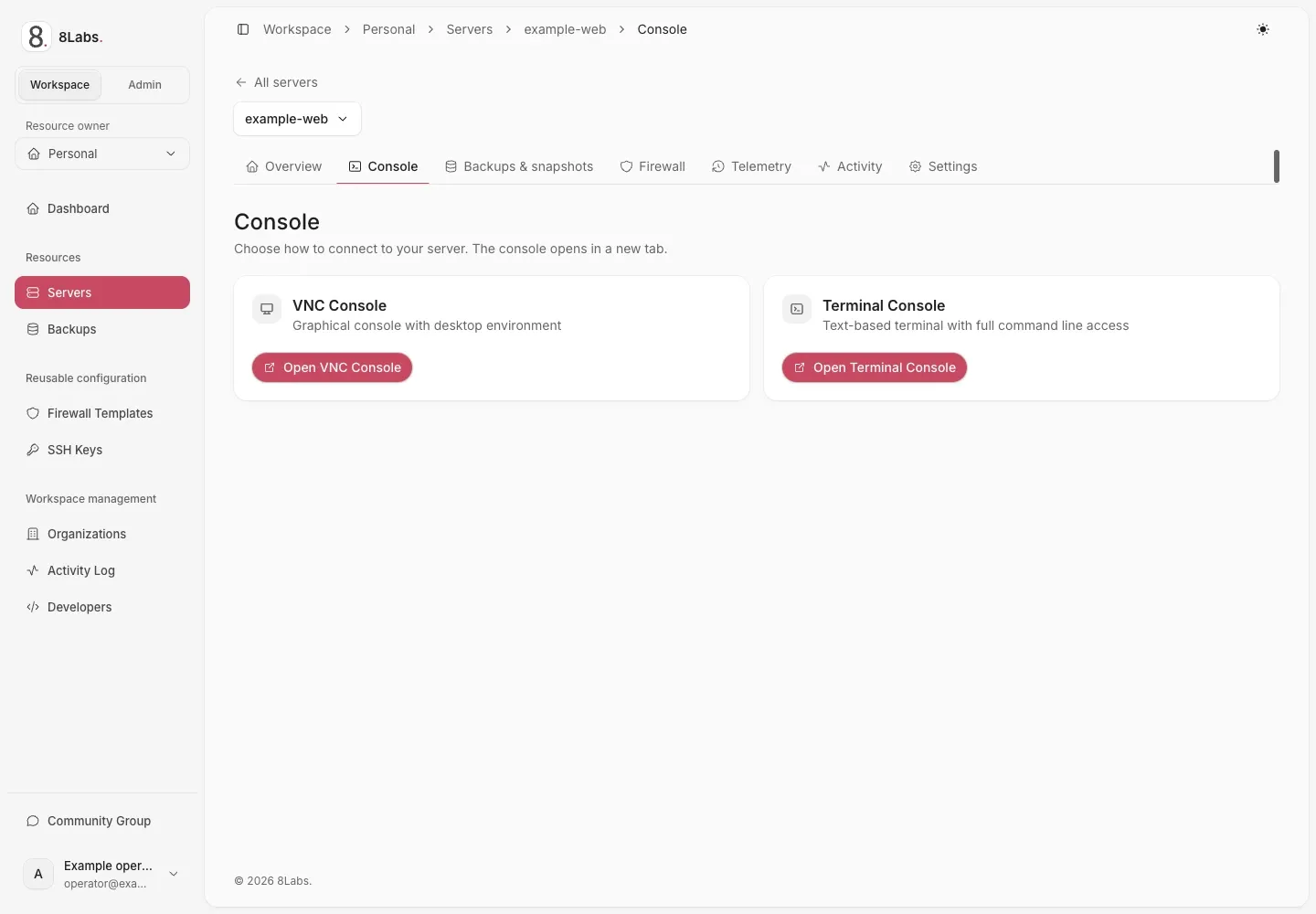
Choose a graphical VNC console or a terminal console.
Choose the correct console
Section titled “Choose the correct console”VNC shows the guest’s graphical display. It can show firmware, a graphical desktop, or a text login screen. Serial shows the configured guest serial terminal. A blank view can mean the guest does not provide a serial login. Neither option promises that the guest is running or that credentials are configured. Use the connection and error states to distinguish a disconnected transport from an empty guest display.
Keyboard, clipboard, and display
Section titled “Keyboard, clipboard, and display”These instructions describe EdgeTerm 1.0.4 controls. A direct Panel broker can show different controls. Click inside the display before typing. Browser and operating system shortcuts can intercept keys before they reach the guest.
Use the side controls
Section titled “Use the side controls”- Select Keyboard to focus guest input for the device keyboard.
- Open Keyboard shortcuts for Esc, Tab, arrows, Backspace, Enter, and guest-specific combinations.
- Ctrl, Alt, and Shift apply to one combination. They reset when controls close, focus changes, or the connection ends.
- Confirm serial Ctrl+D or graphical Ctrl+Alt+Del only when you intend their guest effect.
- Use Move controls to left/right to change the rail edge. Its chevron collapses the rail to a restore handle.
- Hover or focus an icon to read its hint. Hints describe actions without sending guest input.
Use available scale or fit controls for VNC. They change the display, not the guest resolution or server resources. Native phone keyboards, clipboard permissions, rotation, and fullscreen depend on the browser and device.
Review text before sending
Section titled “Review text before sending”- Select Paste text, or paste while the console has focus.
- Review the editable text, character count, and line count.
- Check the destination and every newline. Newlines can execute commands.
- Choose the appropriate action below, or cancel without sending.
Native paste opens Review text before sending, including single-line text. Ctrl+Shift+V or ⌘V opens review in either mode. Graphical Ctrl+V also opens review. Serial Ctrl+V retains literal-input behavior. Use Paste text when the browser intercepts a shortcut. Read clipboard requests browser permission. If permission or support is unavailable, paste manually into the review field. Closing review, cancellation, and disconnect clear its temporary text.
| Action | Result |
|---|---|
| Serial Send text | Sends reviewed text through the terminal’s paste handling. Guest bracketed-paste support can affect interpretation. |
| Graphical Type text | Sends character keys without using the guest clipboard. Newlines send Return and tabs send Tab. |
| Graphical Copy to guest clipboard | Synchronizes text only. It does not type text or send a guest paste shortcut. |
Guest keyboard and Unicode support vary. Clipboard encoding can replace unsupported characters with ?.
Clipboard synchronization does not guarantee that text reaches an application. No combined copy-and-Ctrl+V action is provided.
Never paste secrets or commands without checking the focused destination.
Expired or disconnected session
Section titled “Expired or disconnected session”| State | Next action |
|---|---|
| Missing or invalid launch | Close the console and open it from the authorized server page. |
| Launch expired | Return to Panel and request a new console session. |
| Connection interrupted | Return to the authorized server page and launch a fresh console. EdgeTerm does not reconnect automatically. |
| Serial view empty | Confirm serial support for the image. Use VNC if supported. |
| Panel access denied | Ask the owner to review effective console permission. |
| Host or broker unavailable | Contact support; changing guest SSH settings will not repair the broker. |
A direct Panel broker path may be used on some deployments. Its controls and recovery can differ from EdgeTerm. Follow that deployment’s displayed instructions rather than editing console URLs. Closing the console disconnects that browser view; it does not shut down the server or log out every guest session.
Report a console problem safely
Section titled “Report a console problem safely”Send the time, browser version, selected console type, visible connection state, and redacted error to support. Do not send the launch URL, browser cookies, storage exports, console ticket, JWT, or raw network capture. Crop terminal content and identity details before sharing a screenshot.